Give every job a single file with its steps, papers and payments.
Each job travels through steps you define. A step closes only once its checklist is ticked and its required fields are filled, a missing paper is flagged, the payment tied to that step falls due on its own, and a file that lingers turns red before the customer phones.
- Free 14-day trial
- Every user included
- Your own steps
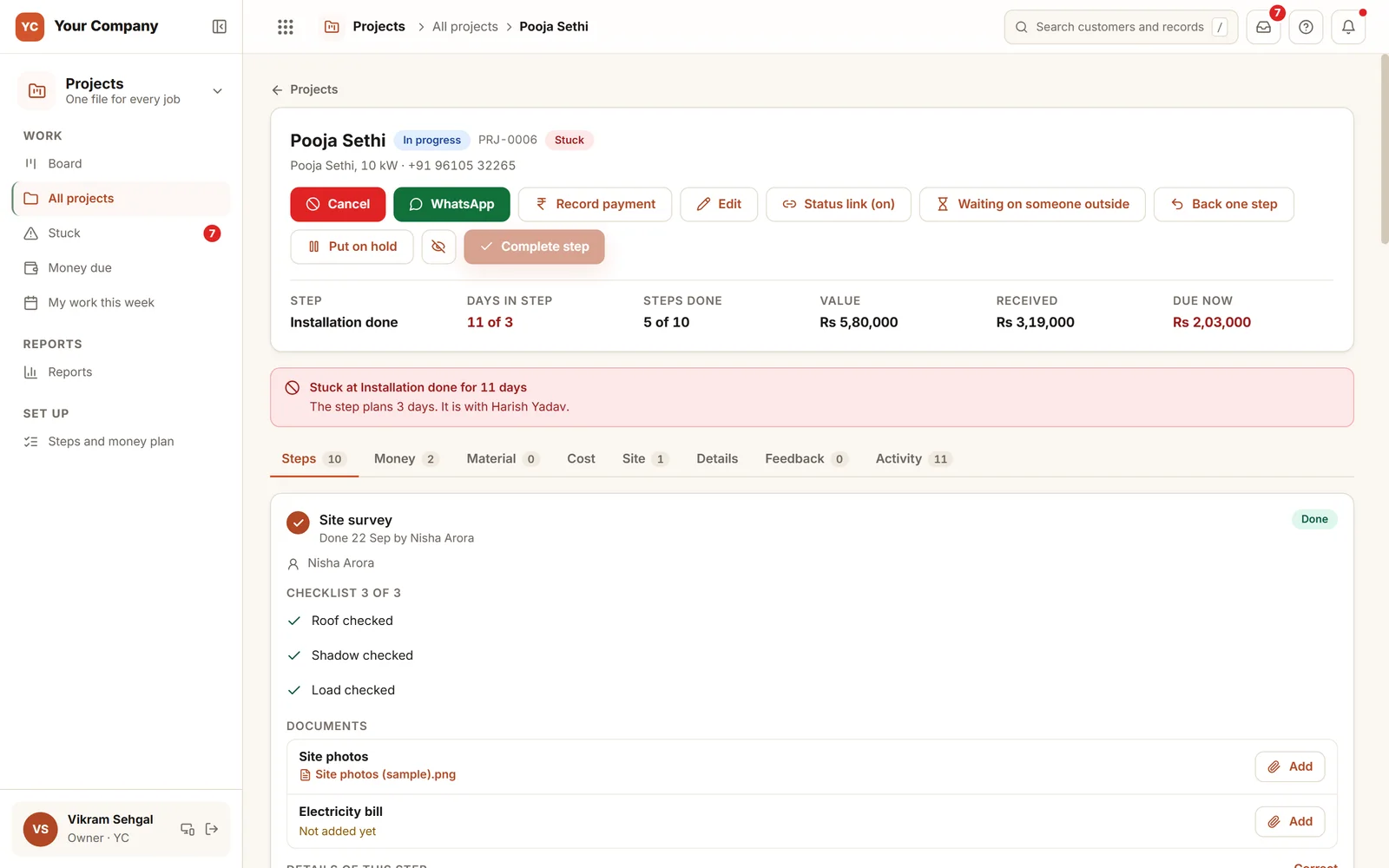
Jobs seldom collapse. They stall, and nobody mentions it.
Every job has a stage no one is watching: a paper not filed, a payment not requested, an approval parked with an outside office.
- 01Each file sits at a different step, and only one person can say which.
- 02Papers are missing on inspection day, and the visit is wasted.
- 03The second payment fell due at installation. No one requested it, and the job has since been closed.
- 04A step is ticked off to keep the job moving, and no one verifies it.
- 05The customer phones every week to ask where the job stands.
Five things each file handles on its own.
The steps are your own: a site survey, a filing, an installation, a handover. The rules around them are identical for every job.
Rule 1 · Step
Done really means done
- Each step carries a checklist and its papers
- Required fields filled before it can close
- A missing paper triggers a warning before the step closes
- The following step’s due date is set from its days
Rule 2 · Check
A second pair of eyes
- Choose which steps need a check
- The person who did the work never checks it
- Skipping or going back over a step with money or papers, a cancel or a new value needs the owner’s yes
- Nothing moves while a yes is pending
Rule 3 · Money
Due along with its step
- The agreed value is divided into money parts
- A part comes due the moment its step is reached
- The customer is reminded, by email or with a ready WhatsApp text
- Raised as a GST invoice if you bill inside the Suite
Rule 4 · Clock
Stuck turns red
- Days in the step are compared with the step’s plan
- The owner is told once a file is stuck
- Waiting on an outside office pauses our clock
- The person on a step due tomorrow is told
Rule 5 · Customer
Informed without a call
- A status link for the customer, switched on file by file
- Steps, outstanding papers and money due
- No staff name, note or internal figure is ever shown
- A WhatsApp text is ready after every step
When material is sent to a site, the file carries a material plan. It reserves the stock for the job, passes any shortfall to purchase as a single request, and asks for a reason before more than the plan leaves the store.
Six screens the team returns to daily.
Real screens of the Business Suite, with sample data. Nothing here is a drawing.
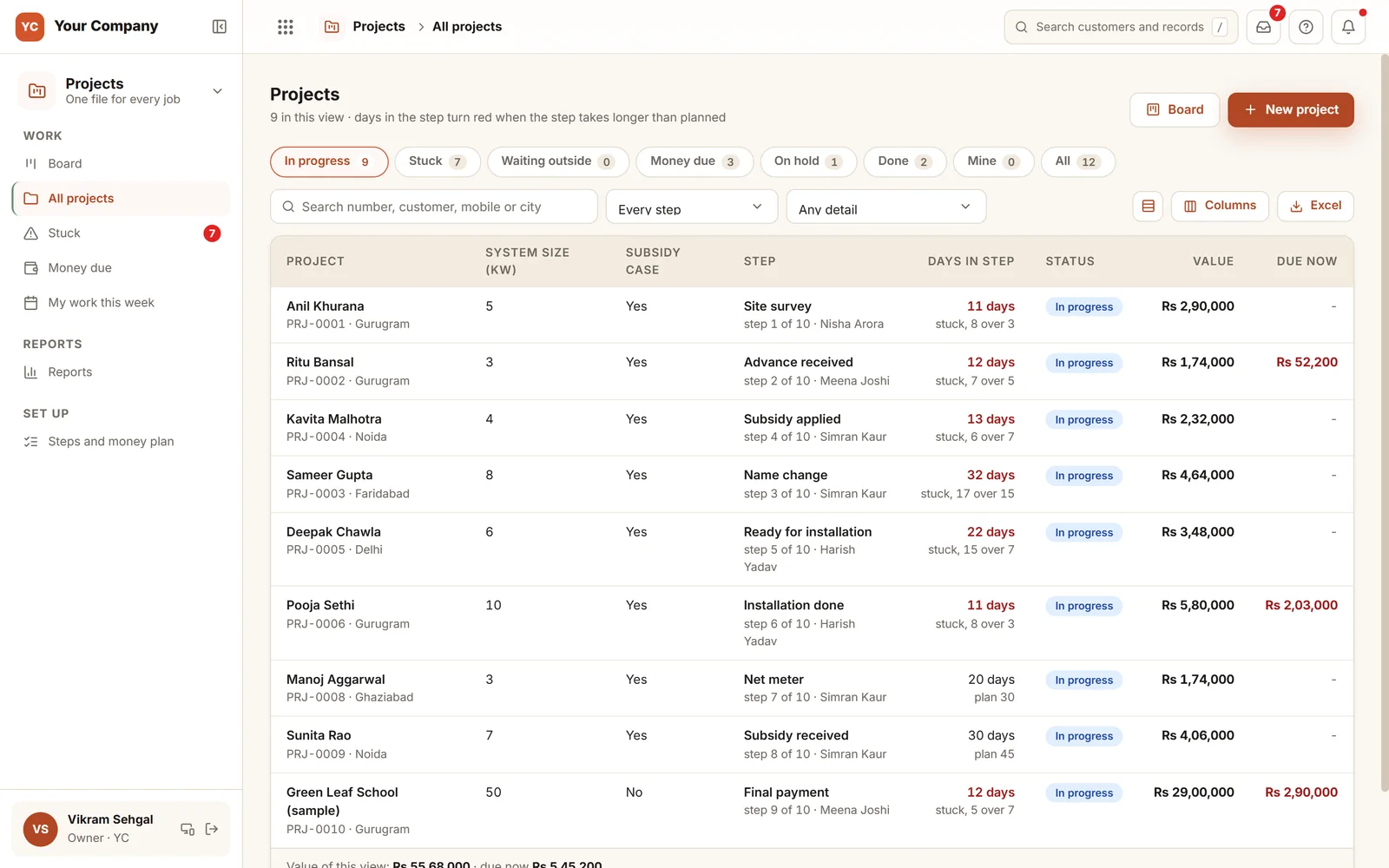
- 1Step and personEach file is shown at its step, with the step number and who is working on it.
- 2Days in redDays in the step turn red once the step runs past its plan.
- 3Worth and owed todayAgreed value and money due today, file by file.
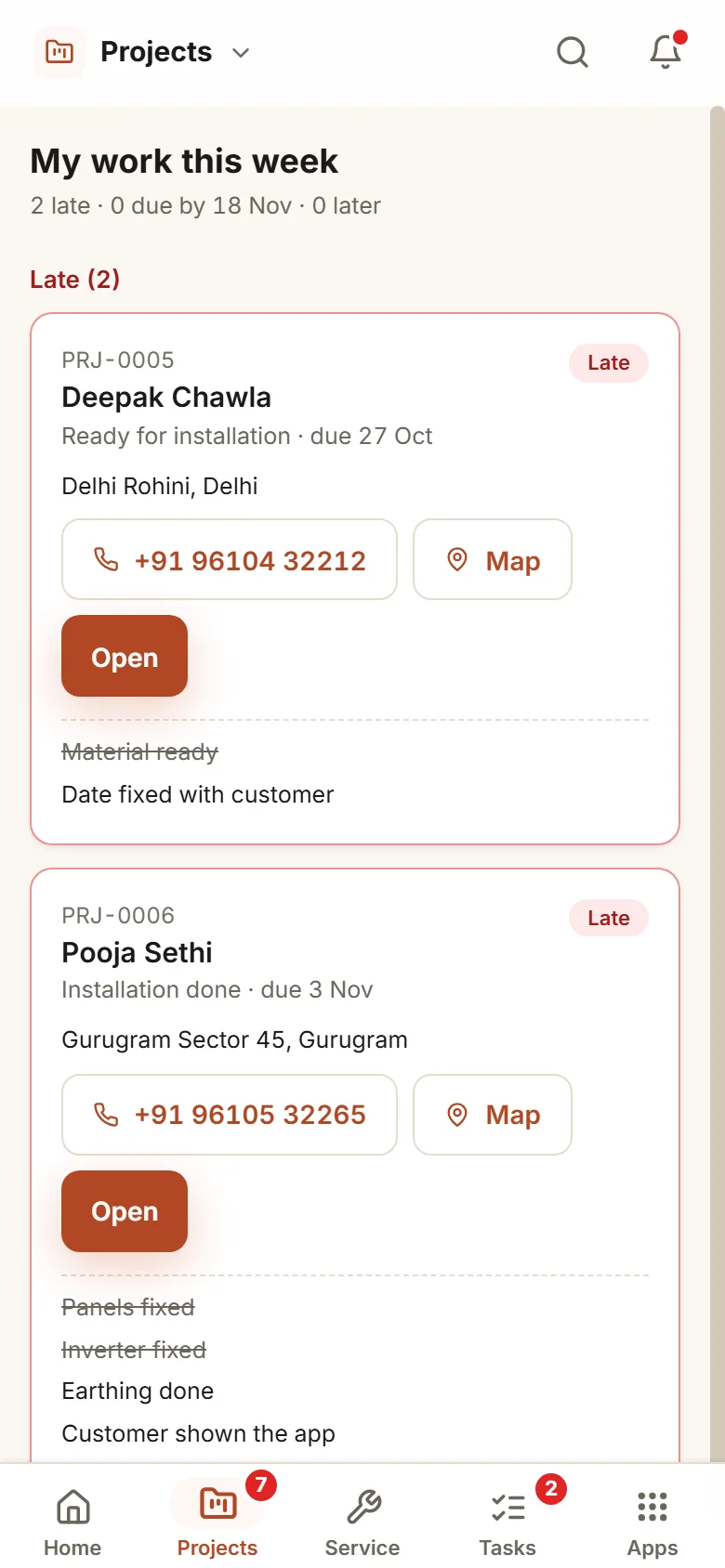
The site team works from a phone. The office watches every file move.
- 9:00 am
The week ahead
The installer opens "My work this week": the sites, the customer’s number, a map link and the checklist for each step.
- 3:00 pm
A step is finished
Photos are attached, boxes ticked and the meter number filled in. The step closes, the next money part falls due, and the update text is ready to send.
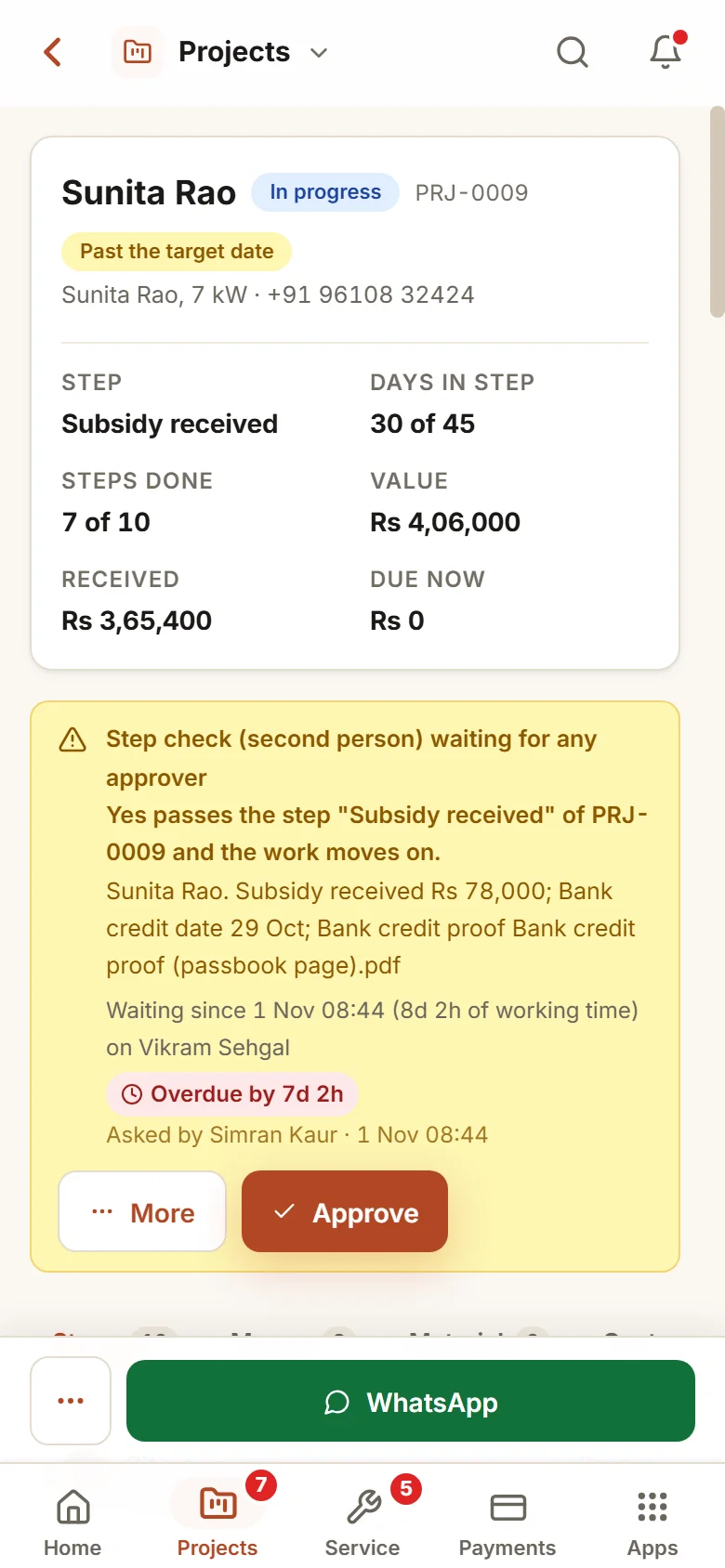
- 6:00 pm
The owner confirms
The subsidy step flagged for a check is held for a second person. You confirm it, and the file moves forward.
You define the steps once. Each job runs on them.
Your own steps for each kind
Rooftop installation, interior fit-out, service contract: every kind has its steps, checklists, papers, fields and money plan.
Your yes where it counts
Skipping or going back over a step with money or papers, cancelling a file or changing its agreed value waits for you.
An older file never shifts
The steps are copied into a file when it is made. A later change in Settings never alters a job that is already running.
Cost and margin for a few
Material, bought-in work and claims set against the agreed value, visible only to you and the roles you pick.
A cancel that ties up loose ends
Payments received, material on site, bills and open purchases: each is decided before a file is cancelled.
Whose delay it was
Time spent waiting on an outside office is counted separately, so the reports show which delays were yours.
Who it is for
- Solar installers with files at the application, net meter and subsidy stages
- Interior and fit-out firms juggling site steps, vendors and client payments
- Manufacturers that install what they sell
- Owners who would rather see every job on one screen than phone each site
What it does not do
- This is not a Gantt tool for big construction. Steps have durations and not dependencies.
- It never submits anything to a government portal. It records the numbers, dates and papers of what your team filed.
- It needs each step marked when it is finished. We configure your steps and coach the team.
Try a project board here in your browser.
A working demo on sample solar jobs: move a file to its next step, tick off its papers and watch stuck files and money due change.
A working demo with sample data. Nothing is saved.
One way in for every app of the Suite.
What owners ask before they start.
Can we define our own steps?
Yes. Each kind of project has its own steps, checklists, papers, fields and money plan, set in Settings. A file keeps the steps it was created with.
Can the customer follow the status?
Yes, through a link you switch on file by file. It shows the current step, the steps, the papers still to come, the money due if you choose, and the next visit. It never exposes a staff name, a note or an internal figure.
How are payments linked to the job?
The agreed value is divided into money parts, each tied to a step. A part comes due the moment its step is reached and the customer is reminded. When billed as a GST invoice, it is collected in Payments.
How is site material handled?
A file can carry a material plan that reserves stock for the job. Material goes to the site through Stock, any shortfall goes to Purchase as a single request, and anything beyond the plan needs a reason.
What is in the offer, and what does it cost?
Projects is one app of the Business Suite. You start with a free 14-day trial on your own business, then choose setup on your own data and monthly running and care, with no charge per user. The plans and prices are in the pricing section of this page and on the /services page.
Where is our data kept?
On our servers. Any list can be downloaded as Excel whenever you ask.
Projects works best next to these.
Put one live job into it and see where it really stands.
Try it first. Decide after. Fourteen days free with sample data, set up for you the same working day.